💼 WTO Laptop
Use this option if you work remotely often and need direct access to WTO resources.
- Access Outlook
- Access the intranet
- Access network drives
- Access internal applications

Work securely from anywhere using your WTO laptop or personal computer.
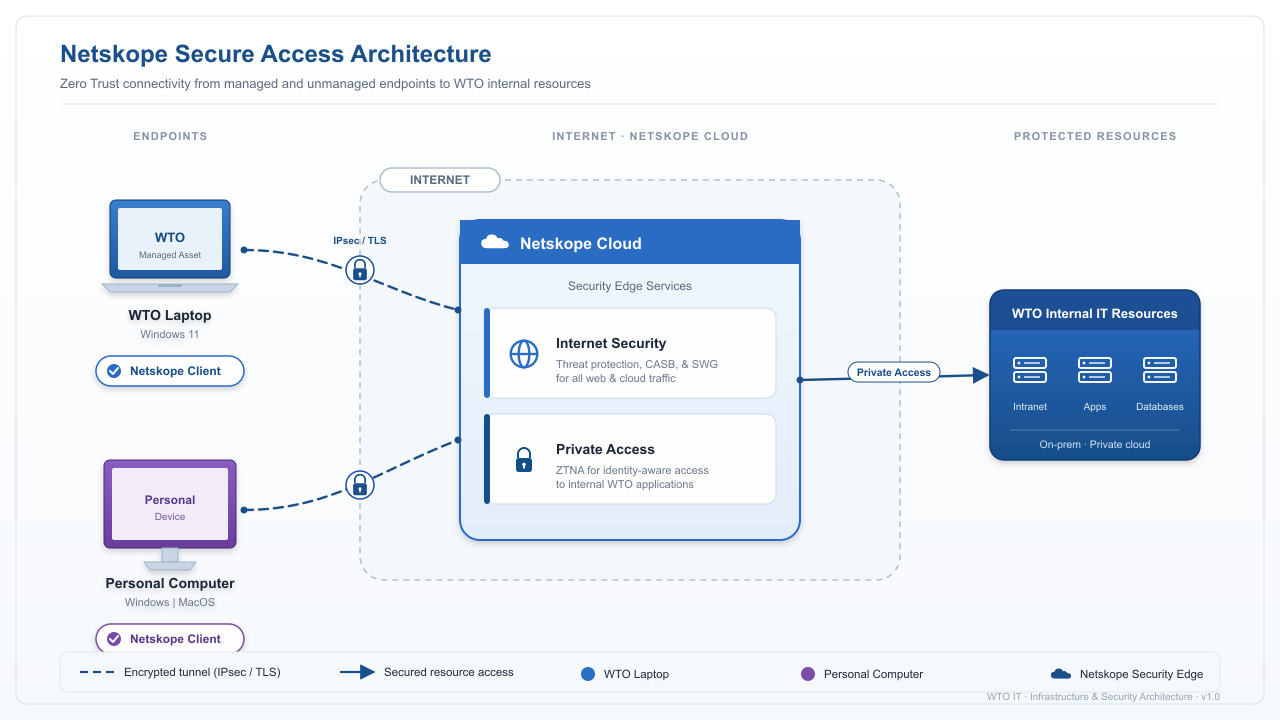
Select the option that matches your device.
Use this option if you work remotely often and need direct access to WTO resources.
Use this option if you are connecting from a personal device to your WTO computer.
Step-by-step visual guides for all devices.
Learn how to connect and use Netskope on your WTO laptop.
Complete guide: Install, connect, and use remote desktop on Windows.
A step-by-step voice guide for installing the client on a Mac.
How to start a remote desktop session after installation on a Mac.
Fast access to the most common support topics.
Choose the download that matches your device.
For personal Windows computers.
DownloadFor personal Mac computers.
DownloadDownload the profile configuration file.
DownloadNetskope is already installed.
Open GuideShort answers for common user questions.
Yes. Use the guide for your device. Personal devices connect to your WTO computer through Remote Desktop.
Use the RSA Emergency Token guide from the Quick Help section.
Open the Change Password guide from the Quick Help section.
Check that Netskope is enabled. If the issue continues, contact the IT Service Desk.
For connection issues, password problems, RSA token issues, or Remote Desktop difficulties, contact the IT Service Desk.
Contact IT Service DeskReference material for users who need more detail.